Curves aren't tools, hence why they're not editable. What you can do is select the curve you want to adjust, then run the draw curve action again to adjust settings like density, smoothing and offset.
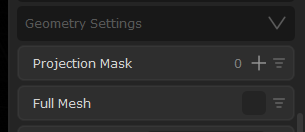
If you need the Road Tool to align to the surface under it, scroll down to Geometry settings and assign the surface to the Projection Mask and maybe also check Full Mesh, that should do it
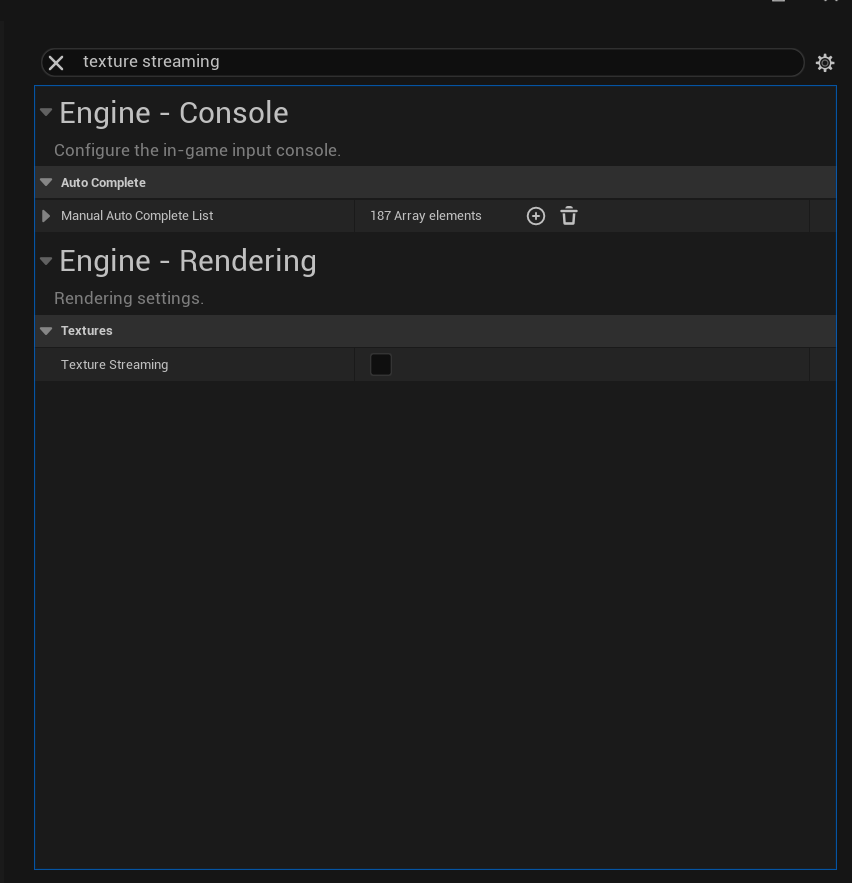
Hello Gary, A user had a similar issue a couple of days ago, This was a caused to texture streaming. To find the option go to: Setting > Project Setting. then type Texture streaming. and you uncheck the check-box.
Disacbling it, or disable and enable it again should fix the issue as well. If you try it let me know how it went.
Good good! Then I guess it is the leaves that are the problem, is it Megascans atlases you created with Dash? or how did you create them? If you switch the mode from Lit to Visibility Collision you should be able to see what collision they have
definitely easiest to scatter on the full landscape and then draw a curve on the portion you want it on, and then use Object Mask and optimize for Curves in Surface Scatter
aha, got it, thanks for letting us know! Virtual texture support is on our todo list but no ETA on it no, sorry! I hope you can manage to work around it for now!
Yee using a big sphere is definitely more processing-heavy than using a spline, unfortunately. If you are using a sphere, you may get better performance if you use Proximity Mask instead of Object Mask. It ain't as precise but easier on the performance.
We have a puddle layer in our Blend Material tool, but that is not accessible in our Material Edit, unfortunately. And using Blend Material tool on anything that ain't a surface/ground does not make much sense as it will override the assets material
But in our Material Edit we have a Dirt Layer that you may be able to adjust the color of to replicate a puddle, but hard to see that you could get good results. But if you are using a Megascans or Poly Haven asset, you could give the Material Edit Dirt layer a try perhaps
ah, if this is a Megascans material, it should be doable yes: 1. For your ground, select your existing material and two others by holding SHift in our Content Browser, drag them out, holding CTRL and create a blend material 2. With the B weight you can add puddles procedurally in the tool. 3. Or you can use Mesh Paint mode in Unreal and paint the B channel (puddles) on just the specific places you want puddles on the ground
I would have recorded a video, but my internal Dash version is not behaving well feel free to get back to me with follow up questions
It would be nice if you made an #Announcements channel for publishing what the latest available version for downloads are. Right now i have to sift through the channels to see if there are any new updates.
We have this channel #news where we always announce latest updates, and sometimes social updates, but it is mostly about Dash updates. So checking that is enough!
And fyi, if we release an Dash update, you will also get an popup in Dash so you should not be able to miss anything actually
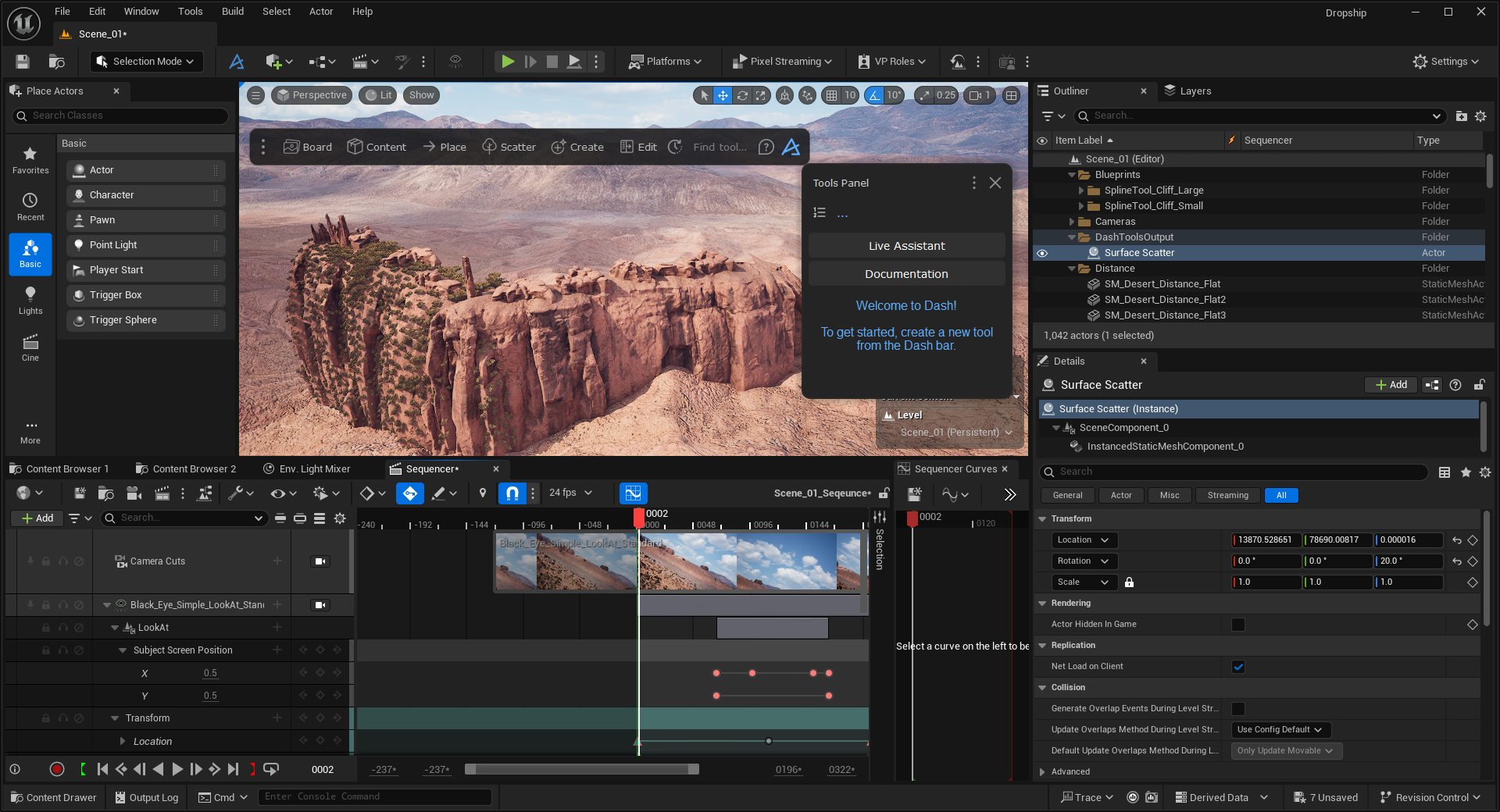
How do I access a surface scatter after a long time? I have a surface scatter and I want to add to it, but when I select it and try to edit, it no longer seems live. What are the steps for this? Thx.
Yee as Sergio said, you can open the list of Active tools and see if it is there. It is the icon/button on the top left corner inside the Tools Panel. The fact that it don't auto appear can be cause the tool connection is broken, if you find it and open it, please check if both the scatter object and surface is still assigned