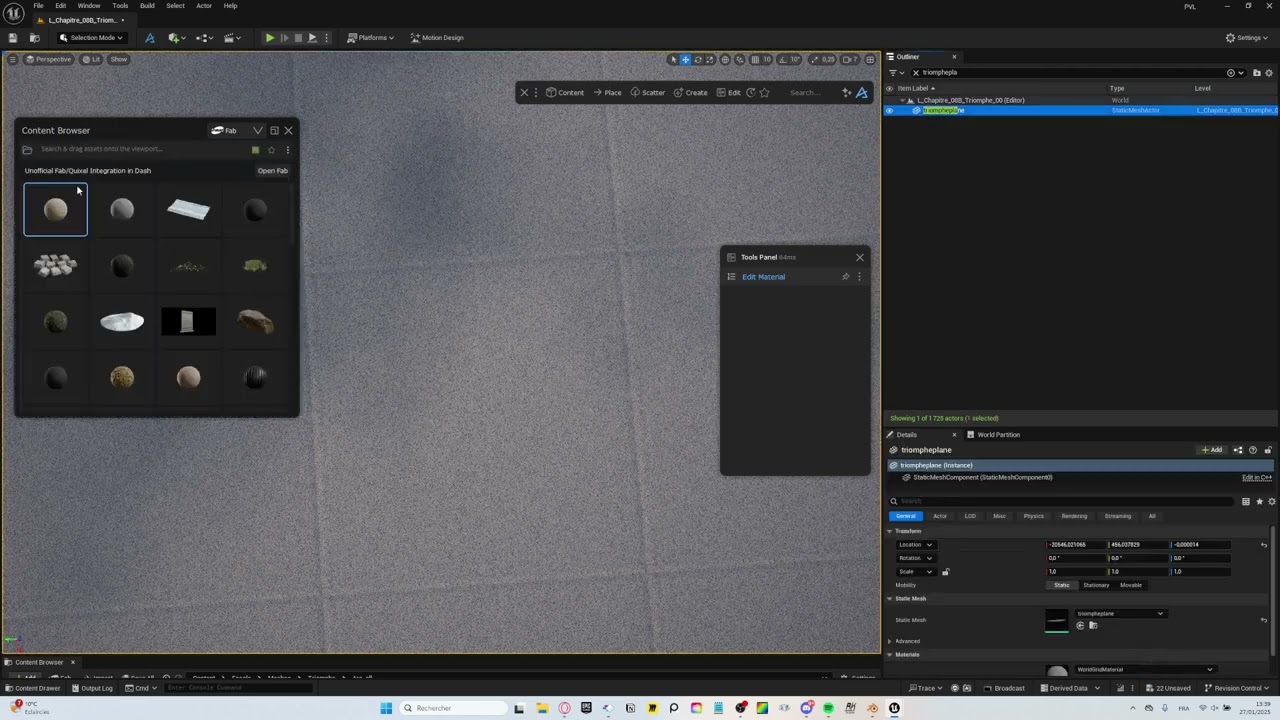
1. Run the tesselation command in Dash 2. Select your plain etc, run nanite command in Dash (make sure to convert/bake a Dash mesh to static mesh first if you are using any Dash mesh) 3. Then you can adjust displacement for your MS assets
I have two problems with the road tool, I'm struggeling with. First is the width. Are this centimeters? If I compare it to a cube, both set at 12 meters (cube) and 1200 (centimeters? road), the road has twice the width. See Attachment 1.
Second problem: How can I adjust the UV so the texture stays in the middle of the road when I change the tiling? See attachments 2 & 3.
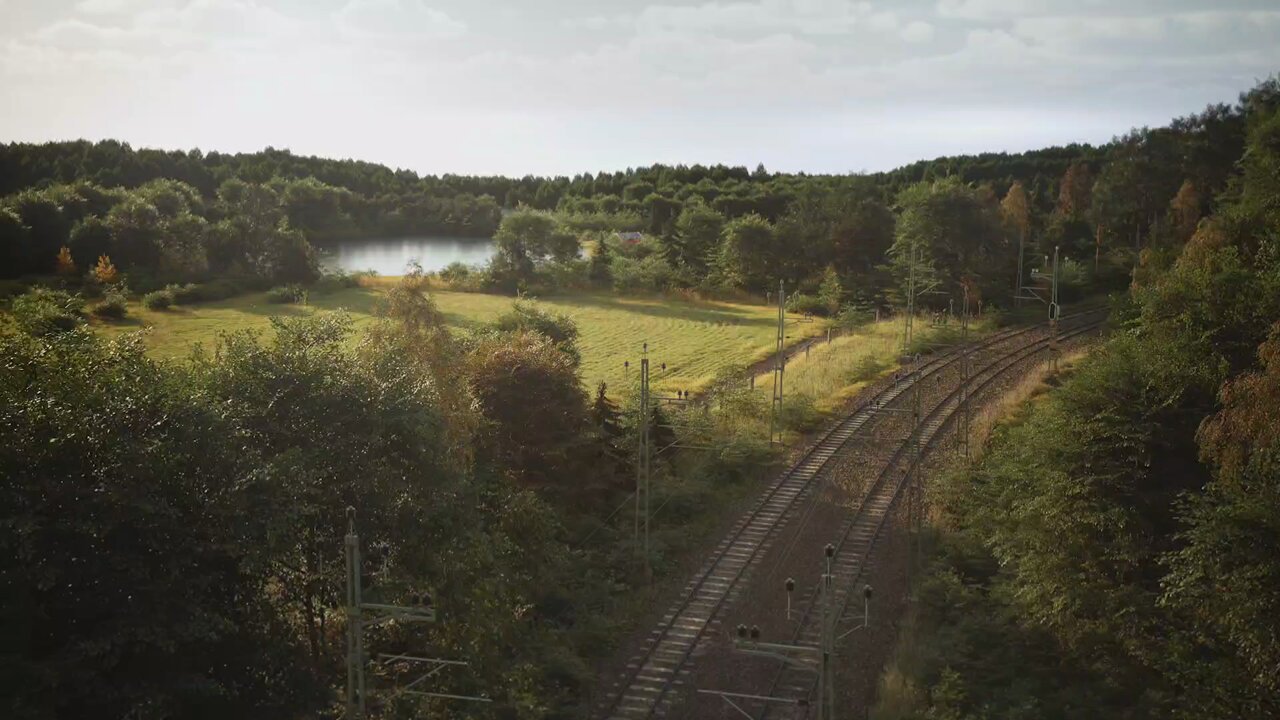
Heey! Happy to hear you like that! It was actually a scene that @tamas_nagy did together with a Swedish train company We have been planning on making some breakdown of the project, but have not gotten around to it yet, but fun hearing that there exists interest!
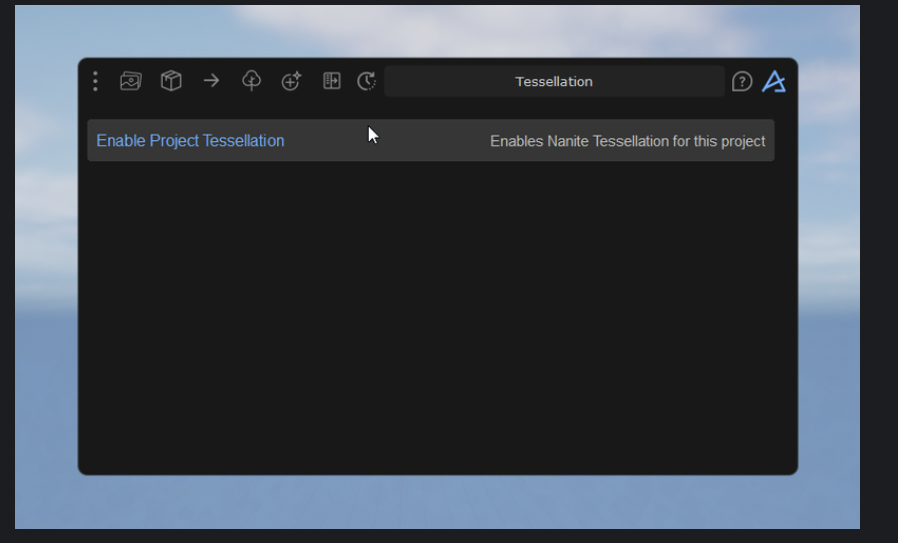
You can search for tessellation in Dash and find the action "Enable Project Tessellation", once you click that, we will turn on tessellation for you. You just need to restart the engine.
@DanielFreden (Dash for UE5) Hey, I have a problem with some fab textures, idk why, when i import the material it's going on a vinyl material type... I don't understand why
Hey, you would need to re-install Dash as well. Safest to first search for Uninstall Dash in Windows and run that, then you can install Dash 1.8.5 again if needed: https://www.polygonflow.io/download-latest-dash
Hey! Yes, we only compute static meshes by default, though you can also compute materials. To do it, locate the specific folder that contains your materials in Dash's Content Browser folder view, then right-click on the folder, and select Include Materials. An icon will show up to indicate that the folder will now have its materials computed.
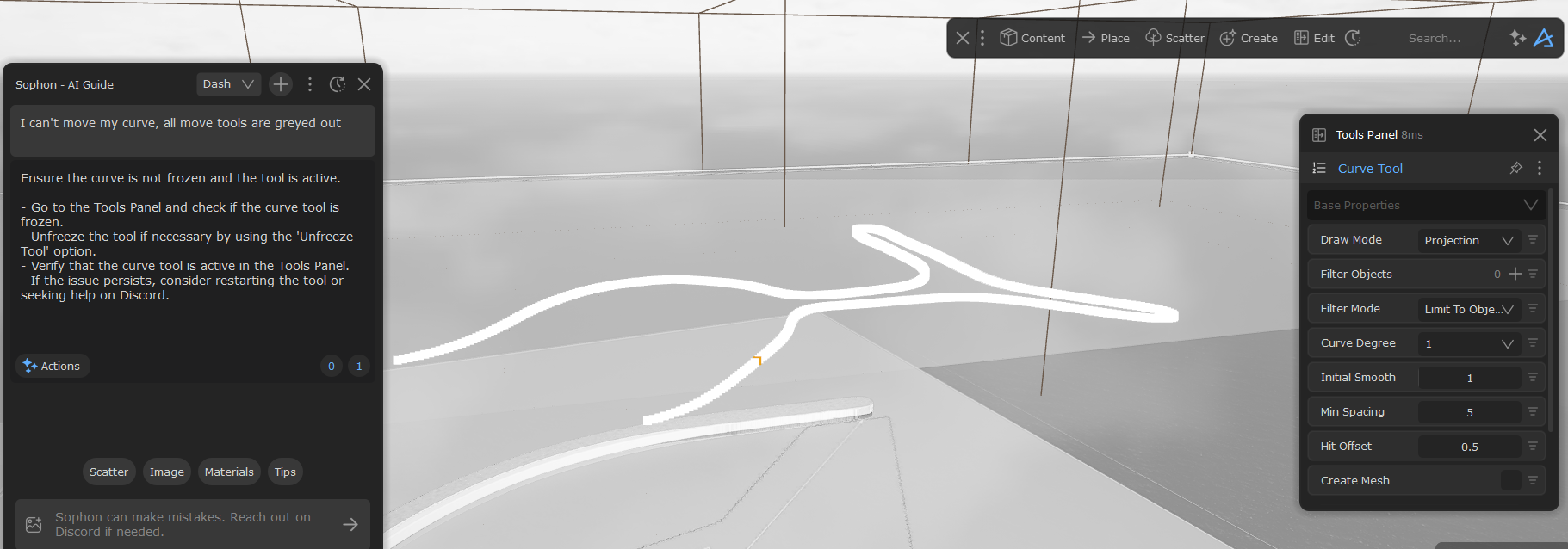
For some reason my curve after drawing it is impossible to move (you can see the move , rotate and scale tools are greyed out). I tried the AI search. I tried the unfreeze tool suggested but it does nothing. I am in a level instance editing.
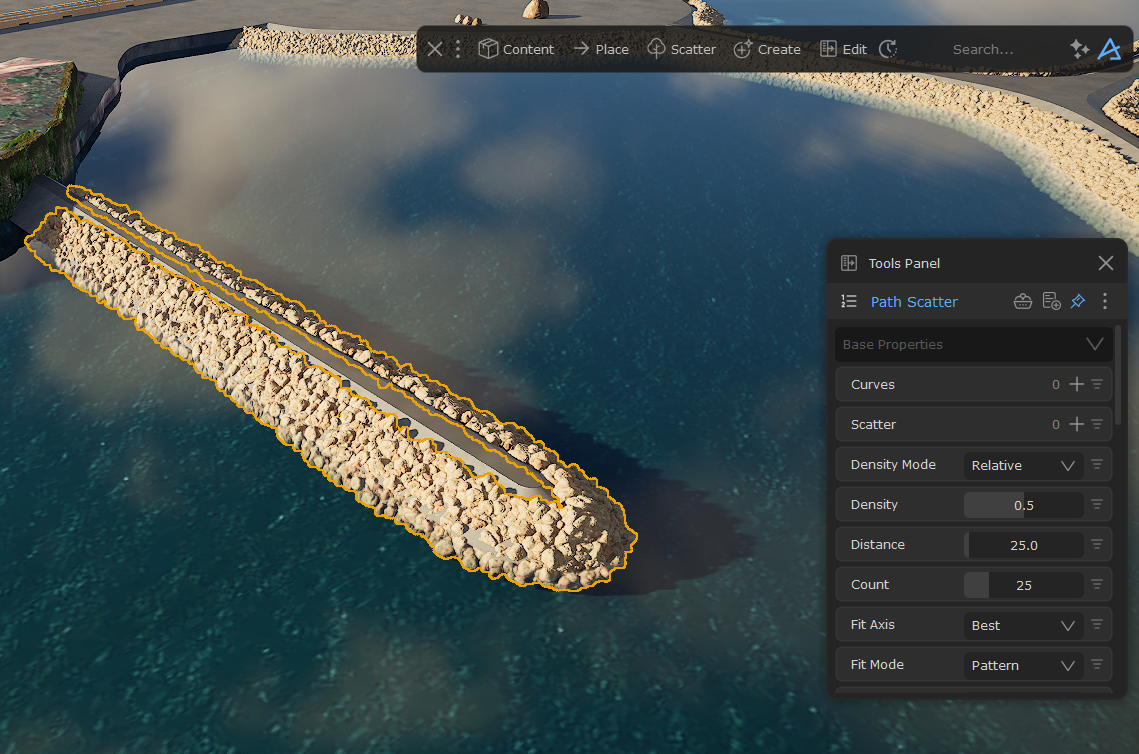
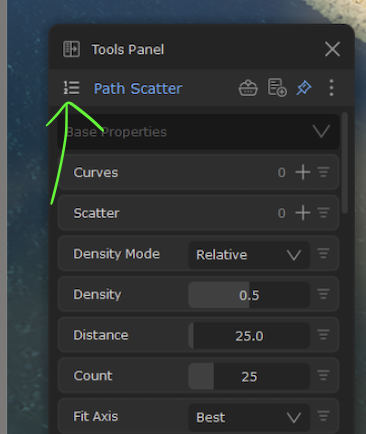
Hey Here you have 2 possible problems (most likely 1 is the answer): 1. You are not looking at the correct Path Scatter in the Tools Panel. You can see the Pin icon is blue, which means that Path Scatter is pinned and therefore you don't see the Path Scatter you actually selected in the viewport. So you can try to un-pin the PS in the Tools Panel, and then de-select and then re-select your Scatter in your scene 2. Or this Path Scatter has lost its connections to the Curve and the rock you scattered. So if it is the right one displayed in the Tools Panel, you can see it says 0 at Curves and Scatter, so you need to assign the Curve and Scatter again. Then when you change the settings such as Density, you will see changes happening in the viewport
If you click here to open the list of active tools, are you able to find this specific Path Scatter? If solution 1 above did not work, most likely the tool connection is broken, and the way to automatically open it in the Tools Panel by selecting is thus not working
If you are lucky, you can find the right path scatter in this list and then re-assign the curve and rocks to make it work again. If not, I am afraid you have to re-do it with a new Path Scatter